Showing posts with label Asus. Show all posts

Sunday, November 24, 2013

Nexus 7 (2013) officially lands in stores, starts at P13,495

The beefed-up Nexus 7 (2013) was announced 4 months ago, but it was only this week that ASUS was able to release it in the stores. As announced on their Facebook page five days ago, the Google Nexus 7 (2013) is now available in ASUS Stores (and other retailers as well, I assume) in the Philippines. The 16GB model sells for P13,495 while the 32GB model goes for P16,495. Both comes with a free TravelCover case, which is not being sold separately. Those are the Wi-Fi only models, however. The 32GB LTE model’s availability is yet to be announced. We might, hopefully, see it released bundled with data plans on local networks.

Sunday, October 27, 2013

Review: ASUS RT-N14U N300 Router

20131024_170754

For our home Wi-Fi, we only use the Globe-issued Aztech DSL5001EN modem and wireless router, which is fine for a small household, and an ancient Linksys WRT54G as a repeater. My main problem with the Aztech router is that it seems to only accept up to 10 devices simultaneously and that the wireless signal is not that great.

And so when ASUS held a sort of wireless routers seminar for the media, we immediately asked what can I review. I was sent the RT-N14U, a wireless N 300Mbps router which is on their entry-level lineup.

Hardware

The RT-N14U features the standard ASUS design for their routers which has their iconic shiny diamond-cube design. It has built-in antennas so there’s nothing that pokes out of the body. It can be hang on a wall on landscape or stand on its own using the in-box stand which clips to the base.

20131024_170823

There are five blue LED indicators on the front which indicates the state of USB, LAN, Wireless, WAN/Internet, and Power. The indicators light up in a cool way, it sort of follows the streaks on the diamond-cube design.

20131024_170925

On its side, there is a USB port wherein you can plug a printer, a hard drive, or a 3G/LTE modem which you can use as a backup in case your main connection goes down. There are also four LAN ports, a WAN port where the internet flows in from your home broadband modem, and the DC power in.

20131024_171004

The back is free of any ports and only shows some information related to the router like the PIN code which you may need when connecting to it for the first time. The stand that I mentioned earlier also goes in here.

Software

Setting up this router is really a breeze. Upon connecting WAN port from the broadband modem, I connected to the wireless network (which is initially open/unprotected) and fired up my browser. I was immediately greeted by the quick setup page (192.168.1.1) where I easily configured the router settings.

Setup 1Setup 2

I entered a new admin password as required, and configured the Wi-Fi SSID and password, and chose to have an automatic DHCP connection from the Aztech modem. It’s that easy.

While this setup works, you should bear in mind that you will not be able to access the router from the ‘outside’ (or from the Internet) because it only acquires an IP address from the modem, and not from the broadband network. You need to get an access from the ‘outside’ if you’re planning to use the features like AiCloud. To do so, you should configure your modem to bridge mode first, and select the PPPoE connection type on setup. You will need to type in your ADSL username and password which you can get from your ISP.

Setup 3Setup 4Setup 5 Setup 6Setup 7

Once done, I was taken to the homepage of the web dashboard. The web dashboard is presented in a way that it will look user friendly even to the normal users which doesn’t know a lot about configuring routers.

Main settings like the network map, guest networks, USB applications, and AiCloud are located on the left under ‘General’ while the more advanced settings are tucked in the bottom. Most settings come with graphical content so you can easily understand or get an idea of what a setting is all about.

Setup 9 Home

Traffic Manager, as you can guess, allows you to monitor the traffic that goes in and out of the router and see if someone is hogging all your bandwidth. Here, you can see a graph of the bandwidth being used, so if you know that you’re not downloading or uploading anything but see some high graphs, well…

Traffic Monitor

…it’s time to set up the QoS setting. This setting lets you manage traffic priorities for the router. You can, say, choose to prioritize web surfing and video calling more over ftp or peer-to-peer (e.g. torrents) connections. This way, you can balance and make the most out of your available bandwidth.

QoS

The USB modem application, as I have said before, lets you connect a USB modem (haven’t tried a mobile Wi-Fi, it may or may not work) so it can serve as a backup connection when your broadband or DSL fails. For most modems, the router will automatically initiate a 3G or LTE connection when it detects that there is no WAN connection, provided that you’ve already configured the APN settings.

USB Modem

If you’re a parent and would like to block some websites from being access on your household, you can do it as well on the RT-N14U. It supports keyword-based URL filtering as well was keyword-based website content filtering (more strict that URL filtering). The former works by blocking a URL which contains a keyword (e.g. keyword ‘tech’ will block technology.com, tech.com, and so on) while the latter will stop websites that contain a keyword from loading altogether (e.g. keyword ‘tech’ will block a website which contains the word ‘tech’ on the page, even if it doesn’t have ‘tech’ in the URL).

Filter URLFilter

The RT-N14U also supports up to three guest networks, in addition to the main network. This is really useful if you want visitors that come to your home to not be able to see your shared files in your main network, or perhaps if you have multiple rooms like gaming rooms or entertainment rooms. You can set passwords for the guest networks or leave them open, if you like. I just wish it had captive portals for the additional cool factor, though. :D

Guest WiFi 2 Guest WiFi

Unfortunately, I was not able to try the AiCloud function of the RT-N14U as I cannot get the Aztech modem to work in bridge mode (looks like Globe hid the function away from users). AiCloud works by uploading the contents of a connected drive online and making it accessible from right about anywhere. It’s like having your own Dropbox or Google Drive. The only difference is that the storage limit depends on the capacity of the drive connected to the router.

Performance

In terms of signal reach, the RT-N14U performed exceptionally better than the Aztech modem that we were using before (of course). In my bedroom (which is behind three concrete walls) where I used to get an average of 1 bar (out of 4) of signal on my Note 2 and 1 (out of 3) on my iPad mini, I am now getting significantly improved signal of around 3 to 4 bars on the Note 2 and full bars on my iPad mini, which results on more stable connections and less data dropouts.

File transfers between my devices are quite fast too. I get around 30 to 40 megabits/second (3.75 to 5MB/second) when downloading a file from my phone using AirDroid. On my iPad mini, I get a much faster speeds ranging 60 to 80 megabits/second (7.5 to 10MB/second) using the VLC app. Syncing on iTunes over Wi-Fi has also gotten much faster than when I was using the other modem.

While the real world tests I conducted are far from what the router promised (it depends on the Wi-Fi chips your devices use, by the way), it still showed a noticeable increase in speeds and delivered great signal strengths over a conventional router.

However, the RT-N14U does not support third-party firmware like DD-WRT and Tomato. So if you’re planning on flashing this, take note.

Verdict

The ASUS RT-N14U delivered what it promised. It makes setting up a router an easy task rather than a head-scratching one and offers great features like guest networks, USB applications (printer sharing, 3G/LTE fallback), and even a torrent downloader (Download Master) which lets you do downloads without the need to leave your computer on all the time.

The performance is stellar and just what you expects from an entry-level router. The others features are clearly just an icing on the cake.

The ASUS RT-N14U router retails for P2,890.

Saturday, October 26, 2013

Review: ASUS MeMO Pad HD 7 — the budget tablet to look for

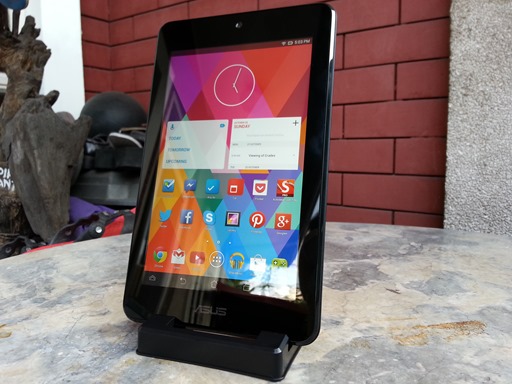
20131020_170305

The entry-level Android tablet category is often filled with a sea of devices that either have uninspiring designs or mediocre hardware and software. In that regard, ASUS strived to make its new MeMO Pad HD 7 stand out among those.

Hardware

The ASUS MeMO Pad HD 7, which was unveiled last June, is a 7-inch slate that aims to be your tablet on-the-go. It is small and lightweight, which makes it a pleasure to hold even with one hand. Its bezel is just right with ample spacing on the sides for your palm to sit on which avoids accidental touchscreen presses.
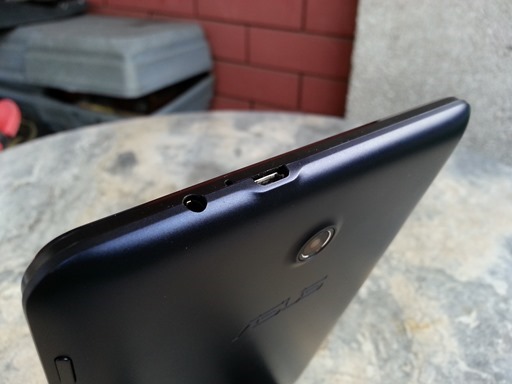
20131020_170547

The sides are almost barren, save for the two ports on the top, namely the 3.5mm headphone jack and the microUSB port, as well as a microphone. You might be wondering, where are the power and volume keys if they are not on one of the sides?
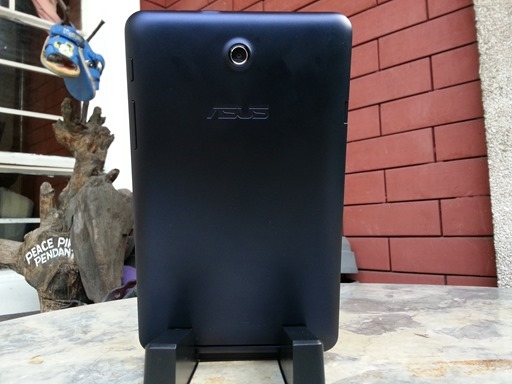
20131020_170449

Those aforementioned buttons are actually on the back — on its tapering edges. Both the power and volume keys sit in an awkward position just by the corner where the back housing meets the front. They are quite uneasy to press at first, but not by much especially when you already get the hang of it (hey iPad mini users!).

20131020_170518 20131020_170845

The 5-megapixel camera sits just above the recessed ASUS logo, and the microSD card slot just to the right of it. The microSD card slot — which can accommodate up to 32GB of additional storage — is oddly unprotected, though it shouldn’t be much of a problem (it would be actually a good thing if you often swap cards). The loudspeaker is located on the tapered bottom edge. Thanks to the placement, it doesn’t get muffled when you put it on a flat surface.

20131020_170646

The display of the MeMO Pad HD 7 is a 1280x800 IPS panel. While it isn’t a high-resolution display like what you will find on the Nexus 7 2013, it has a 216ppi pixel density which still looks nice to the eyes. Texts on webpages appear sharp and images on the screen look crisp. I also found the viewing angles to be pretty good.
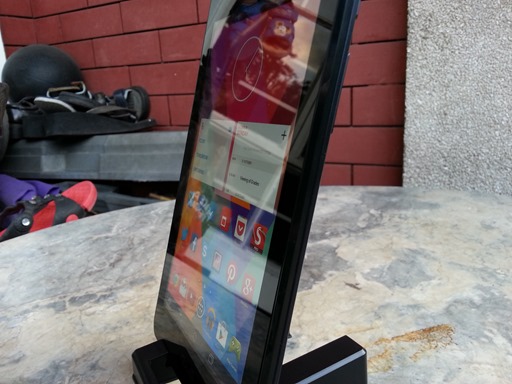
20131020_170745

What I liked about the display is that you can actually change the settings and calibration using the ASUS Splendid app like to make it more vivid if you prefer, adjust the color temperature to make it colder or warmer, and even tone the hue and saturation up or down to make it black-and-white or make it look very vivid according to your liking.

Screenshot_2013-10-20-17-18-55

Software

Running inside the MeMO Pad HD 7 is a minimally customized version of Android 4.2.2 Jelly Bean. ASUS kept it as close to as stock and only added minor retouches, some small features like mini windows, and of course their own apps on top of the core apps like Chrome, Gmail, etc.

Screenshot_2013-10-24-23-05-50

Among those customizations is the ability to choose between the vanilla Android notification panel which keeps things simple or the ASUS-made one which adds quick toggles for the most commonly used tasks as well as the ability to quickly adjust the brightness and audio profiles. It is very nice of them to have these options included.

Screenshot_2013-10-20-17-15-51 Screenshot_2013-10-24-23-17-51

Another addition are the mini apps which lets you use pop-up applications without the need to leave or stop what you are doing. It’s really handy and works quite well. One use case for this is when you need to calculate some numbers, you just tap on the leftmost on-screen button and open calculator. No need to memorize or copy those digits!
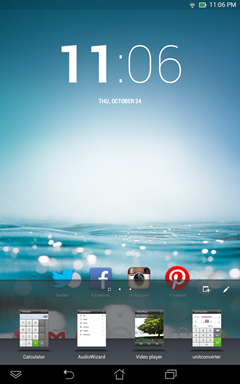
Screenshot_2013-10-24-23-06-02 Screenshot_2013-10-24-23-12-53

An ASUS keyboard comes by default, and while they keys are big and well-spaced, I had some wrong-presses every now and then especially when I type fast. Good thing there’s the stock Android keyboard preloaded which you can set as default. You’ll miss the dedicated number rows, though.

Screenshot_2013-10-20-17-18-11

There are apps that the company bundled with the OS too, such as the App Backup, App Locker (protects your apps from unauthorized usage using a security code), ASUS Studio, Parental Control, and Web Storage (gives you additional 16GB cloud storage for 1 year), and more. Some of these are actually useful like the App Backup and App Locker, mainly if you are mindful of not having your personal files lost or accessed by anyone.

Screenshot_2013-10-20-17-15-26

Performance

When it comes to processing prowess, the MeMO Pad HD 7 stands right in the middle. It’s not slow, and it’s certainly not the fastest among all. What I can tell you though is that with the quad-core Mediatek MTK 8125 chip, it handled most apps and games without much hiccups.

20131020_171008

Simple operations on apps like Facebook, Twitter, and Chrome goes without a hitch. Webpages are being rendered almost instantly as they load, and scrolling is just as what you expect on a Jelly Bean device — smooth and fast.

However, I found a minor problem on the MeMO Pad HD 7. Despite having an ample 1GB of RAM, it gets bogged down occasionally particularly if you’re running a lot of apps and games in the background. It doesn’t affect the whole device, but launching apps take a little longer when this happens. Hopefully, ASUS will fix this by optimizing the software further more.

The stereo speakers on the 16GB variant I’m using is not as loud as expected, though it still delivers clear audio quality. You can change sound profiles depending on what you’re doing (listening to music, playing games, watching videos, etc.) using the Audio Wizard app.

The 3950mAh battery lasts me around a day or two, depending on usage. Today, I used this for 3 hours and had it on standby for 10 hours and I still have 40% remaining juice left. Doing more intense activities like gaming or watching movies would surely take a toll on the battery. ASUS quotes a 10-hour single charge for watching videos.

Screenshot_2013-10-25-00-28-08

Camera

There is a 5-megapixel autofocus camera on the 16GB model (2-megapixel on 8GB model) and the quality is what you would expect on an entry-level device, and we’re talking about tablets. Tablets never really had great cameras before, more so for a device in this category.

Screenshot_2013-10-20-17-19-46

Photos from the front-facing and main cameras appear soft, though they are still enough for occasional ‘selfies’ and video calling. The camera application made by ASUS and offers additional capturing modes like HDR, Panorama, and even Burst mode. Check out the sample shots I took below (click to view in full-resolution).

P_20131026_125507 P_20131026_130454P_20131026_131910 P_20131026_132214
P_20131026_130307

Verdict

The ASUS MeMO Pad HD 7 combines an affordable price tag with respectable hardware and software features plus the guarantee of having a device from a well-known global brand. The HD IPS screen is something that you cannot always expect on a P6,995 tablet, but ASUS begged to differ. The software is just of the right balance, with a slew of customization options and additional features that helps it stand out against the others in the same class. However, clearly, there is a room for improvement on the performance and I really hope that they will address this one.

The good
HD IPS display
Great viewing angles
Small and light
Offers customization options and features like mini apps
Respectable performance and battery life
Expandable memory using microSD
Comes with a stand out of the box

The bad
Sometimes gets slow when multiple apps are running
Camera is not so good

With all things considered, the ASUS MeMO Pad HD 7 is going to be worth your money. It is one of , if not the best budget Android tablet that you can get right now. It retails for P6,995 for the 8GB model and P8,995 for the 16GB model.

Disclosure: I won this ASUS MeMO Pad HD 7 unit at the local launch.

Thursday, October 3, 2013

Quad-core ASUS MeMO Pad HD 7 now out in retail stores for P6,995

ASUS MeMO Pad HD 7 Philippines

If you’re in the market for an affordable yet still capable tablet in terms of performance, look no further other than the ASUS MeMO Pad HD 7.

The MeMO Pad HD 7 was announced in June and is now only arriving in the Philippines at very affordable prices. The 8GB model is being priced at just P6,995 while the 16GB model is at P8,995. The 8GB model is particularly attractive on that price point, just pair it with a 32GB microSD card which you can get for less than P2,000. It is available in variety of colors like blue, white, pink, green and gray

The Android 4.2 Jelly Bean-touting tablet sports a 7-inch IPS display with a 1280x800 HD resolution, a huge improvement over the display of the first-generation MeMO Pad. Powering the MeMO Pad HD 7 is a 1.2GHz MediaTek 8125 quad-core processor along with 1GB of RAM. It packs two cameras — a 1.2-megapixel on the front and a 5-megapixel main shooter on the rear. ASUS says it can last up to 10 hours of 720p HD video playback.

ASUS MeMO Pad HD 7 Price Philippines

They are also offering official accessories for the MeMO Pad HD 7 such as the TransCover which folds into a leveled stand so you can type on the screen at comfort. It comes in blue, pink, white and black at P1,295.

The Persona Cover is also available, which is a snug-fit case that protects the tablet from everyday bumps and scrapes. It is available in available in black, pink and green, though no pricing has been provided.

ASUS MeMO Pad HD 7 Persona Cover Philippines

Thursday, July 25, 2013

New Nexus 7 announced: packs high-res display, 5MP camera, LTE and Android 4.3

Google Nexus 7 (2013) Philippines

In a somewhat small press event yesterday, Google has finally announced the newly refreshed Nexus 7.

The Nexus 7 (2013) now packs an even more high-res display than before, a whopping 1920x1200 IPS one. That makes for a pixel density of 323 ppi. The glass is of unknown variant of Corning Gorilla Glass. It is also thinner and narrower, which makes it even easier to hold with one hand.

The internals on the new Nexus 7 has been updated too. It is now being powered by the not-so-really-new Qualcomm Snapdragon S4 Pro quad-core processor ticking at 1.5GHz, the Adreno 320 GPU, and double the RAM, now at 2GB.

Google Nexus 7 (2013) Philippines Back

Another fairly nice additions is stereo surround speakers, which Google says is powered by Fraunhofer, and the 5 Megapixels rear-facing auto-focus camera. If you remember, the first Nexus 7 did not come with one. There’s also a new notification LED on the bottom part of the screen, which is a really nice touch.

Android 4.3 Jelly Bean

Along with the new Nexus 7, Google also took the wraps off the latest Android 4.3 Jelly Bean update, which ships with the new tablet. It  It features support for Bluetooth Smart (LE) which allows developers to build apps that can take advantage of portable devices like smart watches. It also comes with an enhanced multi-user support and restricted profiles.

The new Android 4.3 update is now rolling out to the Nexus 10, Nexus 7, Nexus 4, and the Galaxy Nexus. The Google Play Editions of the Samsung Galaxy S4 and the HTC One will get it soon.

Nexus 7 (2013) Specifications and Features
7-inch HD IPS display with 1920x1200 resolution (323 ppi), Corning Gorilla Glass
5 Megapixels auto-focus camera
1.2 Megapixel front-facing
1.5GHz Qualcomm Snapdragon S4 Pro quad-core processor
Adreno 320 GPU
2GB RAM
4G LTE – 800/850/1700/1800/1900/2100/2600 MHz (Asia and Europe)
Dual-band Wi-Fi 802.11 a/b/g/n
Bluetooth 4.0
3950mAh battery
SlimPort
Stereo surround speakers
Android 4.3 Jelly Bean OS

The new Nexus 7 (2013) comes in 16GB and 32GB models with Wi-Fi and LTE versions available. It’s currently selling in the US for $229 (16GB Wi-Fi) and $269 (32GB Wi-Fi), while the 32GB LTE model will follow soon for $349.

Tuesday, June 4, 2013

ASUS announces the $129 MeMO Pad HD 7 tablet

ASUS MeMO Pad HD 7 Philippines

In a bid to attract more customers and market-share in the 7-inch tablet category, ASUS comes up with its own MeMO Pad HD 7.

The Android 4.2 Jelly Bean-touting ASUS MeMO Pad HD 7 seems to be competing with Google’s Nexus 7, which happens to be made by them too. It sports a 7-inch IPS display with a 1280x800 resolution, a huge improvement over the display of the first MeMO Pad. Powering the tablet is a quad-core processor coupled with a 1GB of RAM.

The MeMO Pad HD 7 features ASUS’ own SonicMaster audio technology to deliver a richer and more enhanced sound output. What sets it apart from the Nexus 7 is the camera. Unlike the Nexus 7 which only has a camera on the front, the MeMO Pad HD 7 packs two — a 1.2 Megapixel on the front and a 5 Megapixels main shooter on the rear.

While the exact capacity wasn’t mentioned, ASUS says the MeMO Pad HD 7 can last up to 10 hours of 720p HD video playback, which is quite impressive considering this is just an entry-level tablet (based on the price).

Speaking of the pricing, the company says the MeMO Pad HD 7 will retail for just $129 for the 8GB model and $149 for the 16GB model. It will be available in emerging markets starting on July.

Monday, May 20, 2013

ASUS launches the 7-inch Fonepad tablet in the Philippines

ASUS FonePad Philippines

ASUS Philippines finally launched the 7-inch tablet, Fonepad in the Philippine Market.

The ASUS Fonepad is a 7-inch tablet with built in 3G voice and mobile data functionality. This is ideal for people who want a phone functionality at the heart of a big 7-inch screen.

The 7-inch tablet sports a 1280 x 800 IPS 10-finger multitouch display together with a 1.2-megapixel front camera for easy video chat and an optional 3-megapixel autofocus rear camera with 720p HD video recording. It also has built-in 3G with HSPA+ mobile data which means that  the ASUS Fonepad lets you get connected for seamless web browsing, fast downloads, and smooth audio and video streaming. Making calls with this gadget is great with its built-in noise-cancelling digital microphone. All these features are packed with Android Jellybean and powered by the latest Intel Atom Z2420 processor.

ASUS Fonepad Specifications and Features

Display 7-inch IPS LED-backlit display with 1280x800 resolution at 217ppi
Processor / Graphics

1.2GHz Intel Atom Z2420 processor
PowerVR SGX540 GPU

Memory and Storage

1 GB RAM
8GB / 16GB internal memory, expandable up to 32GB using microSD card

Camera 3 Megapixels autofocus camera
1.2 Megapixel front-facing camera
720p HD video recording
Networks

GSM / EDGE - 850/900/1800/1900MHz
3G/HSPA+ - 850/900/1900/2100MHz

Connectivity

Wi-Fi 802.11 b/g/n
Bluetooth 3.0

Sensors

GPS / GLONASS
Accelerometer
Proximity
Ambient light sensor
Compass

Others

Noise-cancelling microphone
Micro-SIM card

Battery 4,270mAh
Dimensions and Weight 196.4 x 120.1 x 10.4mm
340g
Operating System Android 4.1.2 Jelly Bean

The ASUS Fonepad will be out in stores by the end of May and will be priced P14,995 for 32GB and Php 11,995 for the 8GB. This tablet comes in two different colors, Titanium Gray and Champagne Gold.